imbas User Manual for Accountants Muz

  • Move Introduction
    Open Introduction

    Welcome to imbas

    Imbas is an automated extraction and categorization tool for your account purchasing department to keyin your customer's business purchases. Imbas posts to Bukku accounting once your done verifying the purchase.

    How it Works

    Imbas comes with an upload page where you can upload daily purchases made by the buisness. Once uploaded imbas will extract all the necessary data (invoice number, amount and date), supplier and categorize the bill into the correct Accounting Code and Name.

    On the verify page, you simple confirm the correctness of the extracted data and categorization. Once you are satisfied, you send it to Bukku either one at a time or in bulk. Imbas will take care the process of posting to Bukku. After a few minutes you will the selected purchase in on your Bukku accounting software.

    Imbas uses Artificial Intelligence (AI) to extract the data and categorize the purchase. Why AI and not a normal Object Character Recognition (OCR) solution? Well

    Introduction 301 words
  • Move Creating a new Station
    Open Creating a new Station

    Creating a new Station

    1. On the main page, click on "Add Station" Screenshot 2026-03-17 at 2.59.31 PM.jpg

    2. Fill in the name of the station Screenshot 2026-03-17 at 3.10.43 PM.jpg

    3. Newly created Station will be sorted alphabetically with other station on the main page Screenshot 2026-03-17 at 3.14.57 PM.jpg

    Creating a new Station 49 words
  • Move Linking Station with Bukku
    Open Linking Station with Bukku

    Linking Station with Bukku

    1. After creating a Station and before you can start uploading any bills,  it is important to link the station with Bukku first. To do that you will need to get 2 things from Bukku; 1) Subdomain (imbas calls it Domain) and 2) Access Token (imbas calls it Token)

    2. On the Station’s Bukku account, navigate to *Control Panel > Integrations *

    3. Make sure API Access is turned ON (blue) Screenshot 2026-03-17 at 3.21.40 PM.jpg

    4. Copy the Access Token and Subdomain Screenshot 2026-03-17 at 3.23.35 PM.jpg

    5. Now go to imbas and select the newly created station

    6. Click on the Settings icon (single gear) on the right Screenshot 2026-03-17 at 3.26.36 PM.jpg

    7. Click on Edit Screenshot 2026-03-17 at 3.59.49 PM.jpg

    8. Paste the following

    Linking Station with Bukku 197 words
  • Move Process flow for imbas
    Open Process flow for imbas

    Process flow for imbas

    1. Imbas works by extracting the required data from bills and understanding the bill by categorizing it in the appropriate account and supplier.

    2. The navigation at the top are the easiest way to understand imbas’s process flow. Screenshot 2026-03-17 at 4.10.13 PM.jpg

    3. Upload > Verify > Posted.

    4. Getting from having a bill to posted only requires 2 steps; Upload and Verify. Posted is more of achive data.

    5. Breakdown of the process are as follows:

      • Upload - Step 1: Upload bills
      • Verify - Step 2: Bills that has be extracted by AI will require a verification by a human (you). Once verified you can send the bill to Bukku 
      • Posted - All posted bill will be stores here. You can find the bill base on the date, when it was uploaded or when it was posted.
    Process flow for imbas 146 words
  • Move Upload bill(s)
    Open Upload bill(s)

    Upload bill(s)

    1. Click on Upload in the navigation bar

    2. Click or drag (not more than 10 bills) in to the blue box area. Screenshot 2026-03-17 at 4.38.45 PM.jpg

    3. Your uploaded bills will be displayed at the bottom of the upload (light blue) box. Be sure to wait until all the green bars is full for each bill before pressing “Upload bills”. Screenshot 2026-03-17 at 4.39.11 PM.jpg

    4. To cancel this upload, simply refresh the browser and whatever you’ve uploaded will dissaper 😁

    Upload bill(s) 84 words
  • Move Verifying bills
    Open Verifying bills

    Verifying bills

    1. Navigate to “Verify” in the navigation bar to start verifying bills

    2. The Verify page is split into 2 sections: 1) List of Bills 2) Bill details Screenshot 2026-03-17 at 4.49.57 PM.jpg

    3. Every bill that is uploaded will be listed in the List of Bills. Bill that are in the process of being extracted are labeled as “Extracting…” Screenshot 2026-03-17 at 4.52.30 PM.jpg

    4. Bills that has completed AI extraction and requires human (you) verification will be labeled as “Verification required” Screenshot 2026-03-17 at 4.52.30 PM copy.jpg

    5. Clicking on a bill wil show details about the bill; its image, extracted data, statistics and actions that can be performed on this bill. Screenshot 2026-03-18 at 4.51.14 PM.jpg

    6. If a bill has a “New supplier”

    Verifying bills 477 words
  • Move Posted bills
    Open Posted bills

    Posted bills

    Posted bills are all the bills that has been sent to Bukku. It serves as a backup to Bukku's database and a reference to check on the upload history of the bill.

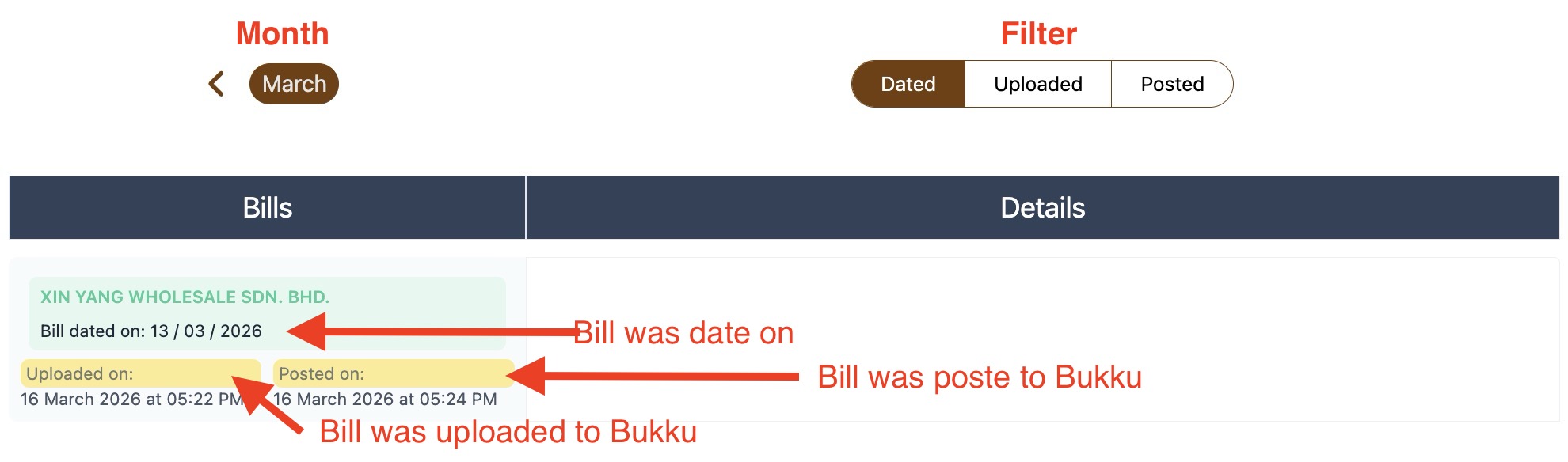
    The Posted page is divided into 2 different navigation section:

    • Month: Allows you to navigate to the appropriate month
    • Filter: Filter bills to find bills that are sorted by the date on the bill, when it was uploaded and when it was posted to Bukku. Screenshot 2026-03-18 at 5.23.26 PM.jpg
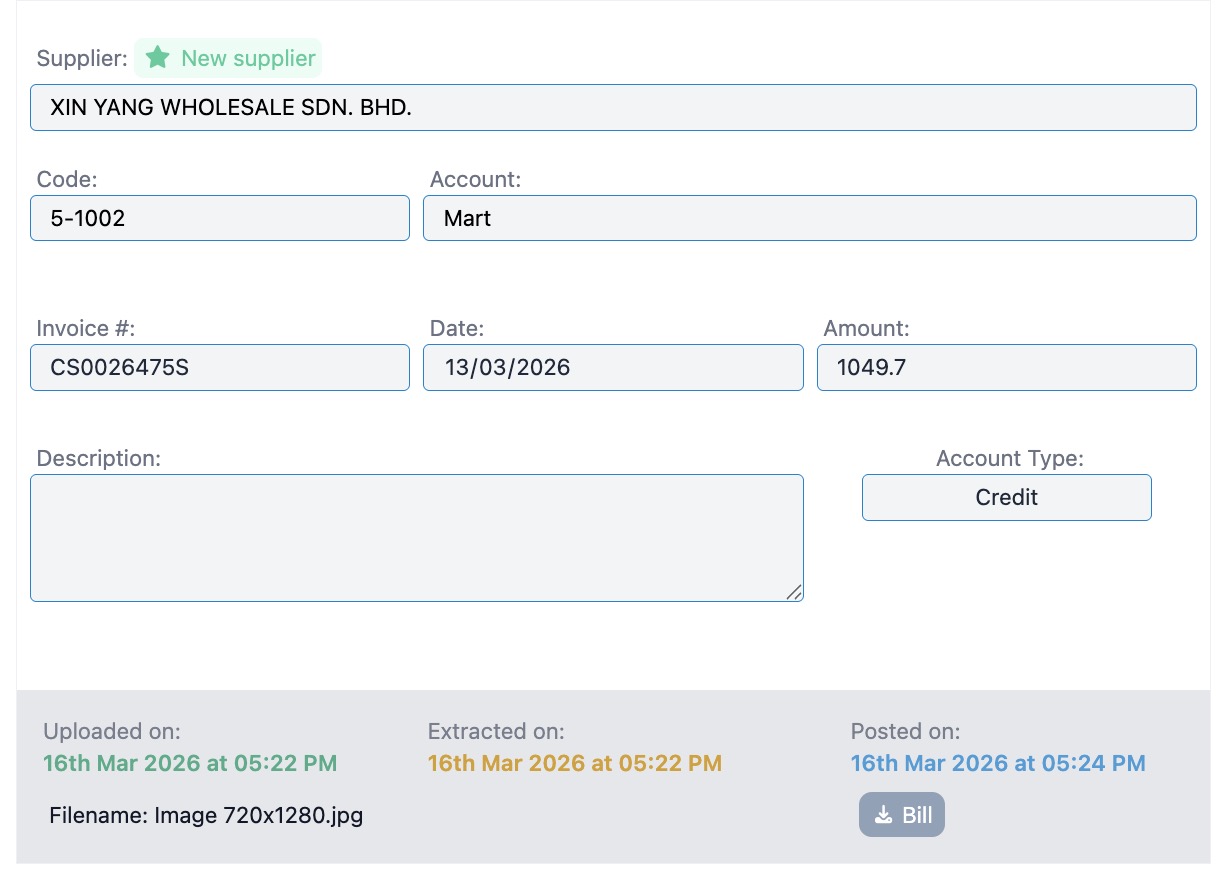
    Selecting on a particular bill will display the bill, similar to the verify page except at the bottom of the bill:

    • Non of the fields can be change
    • Action is only limited to Downloading the bill
    • Additional statistics show when it was posted to Bukku
    • Now shows the file name Screenshot 2026-03-18 at 5.34.55 PM.jpg
    Posted bills 144 words
  • Move I have a question?
    Open I have a question?

    I have a question?

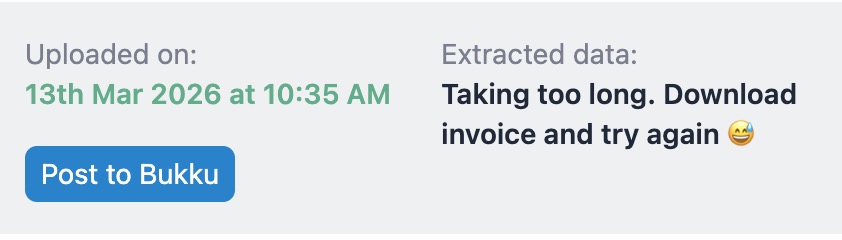
    Why does in Verify my bill shows "Taking too long. Download invoice and try again"?

    Something went wrong with the AI data extraction. You can either; 1) Download the bill and reupload it again or 2) Extract Again and have imbas do it for you. Screenshot 2026-03-18 at 5.47.04 PM.jpg
    In Verify, why imbas can't display the bill (Content Missing)?

    This is because you did not link the station to its bukku account. Screenshot 2026-03-18 at 5.50.39 PM.jpg

    In verify, why does imbas shows the extracted data but when I try to change the Supplier or Account, the list is empty?

    Congratulations the AI just lied to you (or some might call this hallucinate). It happens because you did not link the station to its bukku account (subdomain and token is missing). The data that you see might have come from another station's list of suppliers or Account that was cache

    I have a question? 177 words